AI Wizard
Overview
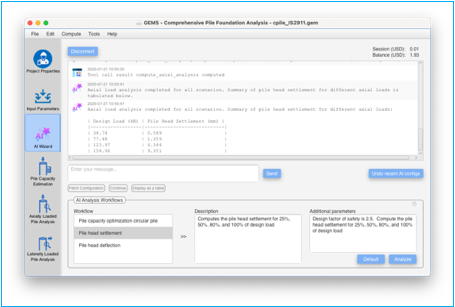
The AI Wizard in GEMS – Comprehensive Pile Foundation Analysis software enables users to perform intelligent analysis workflows for pile foundations using built-in computation modules. It assists in tasks such as pile capacity optimization, pile head settlement, and deflection analysis with minimal user intervention.
Note: AI functionalities are powered by external service providers (such as OpenAI), and GEMS does not guarantee the availability, accuracy, or performance of these services.
Note: AI-generated outputs are intended to assist, not replace, professional judgment. Results may include estimations, predictions, or recommendations that are probabilistic and may not fully reflect engineering standards, regulatory requirements, or project-specific conditions. Please ensure you review, validate, and verify any AI-generated results before relying on them for design, analysis, or other critical decisions.
🔌 Connection Area

[Connect] / [Disconnect] Button: Establish or terminate the connection to the AI server located at gemsoftware.ai
Usage Panel: Displays the current usage of AI and the balance usage available. The current usage of AI depends on the complexity of the task being performed. Note that the AI usage is chargeable even if the outcome is not to your satisfaction. If your balance goes below negative, you will no longer be able to use AI functionality. Please contact support@gemsoftware.ai to top up the balance.
💬 Message Area
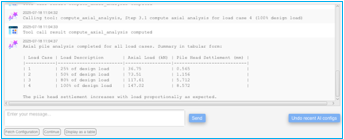
Chat Log: Displays interaction history between user and AI system. In addition it also displays any application functionality being used.
Message Box: Users can type specific prompts or requests to the AI.
[Send] Button: Sends the typed message to the AI server.
[Undo recent AI config] Blutton: Removes the recent AI generated configuration to the system. This will restore the configs to point of the last user generated config.
Note: The Chat Log is not stored in the system and is cleared once the application is closed.
⚙️ Action Buttons
Fetch Configuration: Loads current project configuration for analysis.
Continue: Continues an existing AI-driven analysis session.
Display as a Table: Renders AI-generated data in a tabular format.
✨AI Analysis Workflows
AI Analysis workflows make use of AI to aid the users in performing typical engineering workflows. The AI can make use of all the advanced computation facilities available in the application to arrive at the desired outcome.
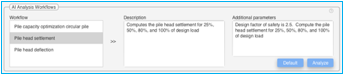
Upon connecting to the AI server, the available workflows are displayed. The users can select the desired workflow to run.
Workflows: Lists the available workflows that can be performed by the software. The list of workflows is fetched from the server upon connection and updated by GEMS on a frequent basis. Selection of a workflow automatically updates the description and parameter panels.
Description: Displays the details of the selected workflow. Please read this and ensure the pre-requisites are met before executing the workflow.
Additional Parameters: The user can input their desired additional parameters here in place of the default parameters.
[Analyze] Button executes the selected workflow using project input data.
[Default] Button loads pre-configured default parameters for the selected workflow.
💡 Tips
• Ensure project input parameters are appropriately defined before launching AI workflows.
• Chat input can also be used to request explanation of results or suggest design improvements.
• The AI Wizard remembers your session and maintains state while connected.