Menus
The menu consists of
File Menu
New
Creates a new project and sets all values to default value.
Open
Opens a file-chooser dialog to select an existing ‘.gem’ (geotechnical engineering model) project file to load. The values in the current project are not saved and it doesn’t prompt the user to save the data.
Save
Saves the existing project to the ‘.gem’ file. If a file is not already specified, it opens the file-chooser dialog to select the name of the file to be saved. The project properties and input parameters are saved into the file.
Save As
Opens a file-chooser to select the file to save the project to.
Export to Excel
Exports the project properties, input parameters, analysis to an excel (.xlsx) file.
Select the parameters to be exported in the ‘Export to Excel’ dialog window and click ‘Export’. In the following file-chooser dialog, specify the export file.
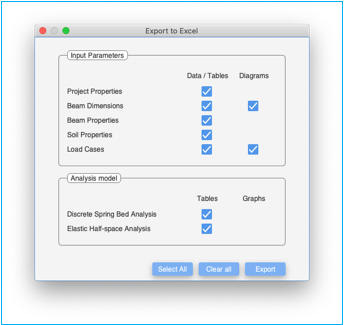
Note: To avoid stale analysis values being exported, rerun the analysis using the compute menu and then export the contents to excel.
Note: Analysis results are exported for analysis models having FULL / valid SUBSCRIPTION licenses. Results for analysis models with trial licenses are not exported and the respective fields in the ‘Export to Excel’ dialog window will not be selectable and greyed out.
Export to Word
Exports the project properties, input parameters, analysis to an MS Word (.docx) file.
Select the parameters to be exported in the ‘Export to Word’ dialog window and click ‘Export’. In the following file-chooser dialog, specify the export file.
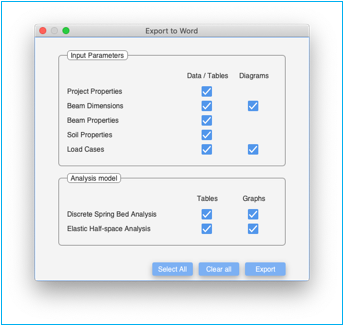
Note: To avoid stale analysis values being exported, rerun the analysis using the compute menu. Visit all the results pages first prior to exporting the results to Word.
Note: Analysis results are exported for analysis models having FULL / valid SUBSCRIPTION licenses. Results for analysis models with trial licenses are not exported and the respective fields in the ‘Export to Word’ dialog window will not be selectable and greyed out.
Export to PDF
Exports the project properties, input parameters, analysis to a Portable Document Format (.pdf) file.
Select the parameters to be exported in the ‘Export to PDF’ dialog window and click ‘Export’. In the following file-chooser dialog, specify the export file.
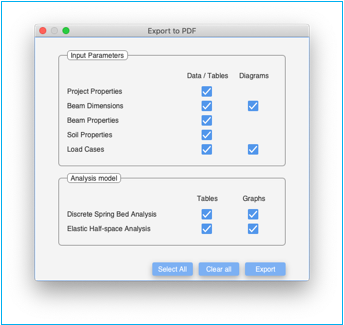
Note: To avoid stale analysis values being exported, rerun the analysis using the compute menu. Visit all the results pages first prior to exporting the results to PDF.
Note: Analysis results are exported for analysis models having FULL / valid SUBSCRIPTION licenses. Results for analysis models with trial licenses are not exported and the respective fields in the ‘Export to PDF’ dialog window will not be selectable and greyed out.
Select the parameters to be printed in the ‘Print’ dialog window and click ‘Next’
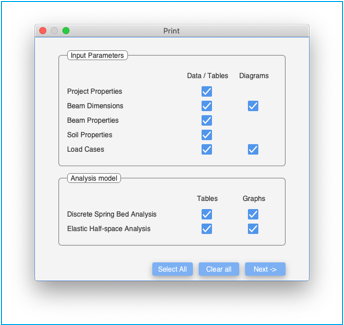
A printer selection dialog window will then open
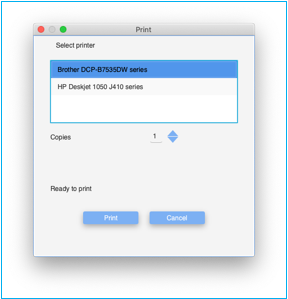
Select the printer from the selection list.
Select the number of copies to be printed.
Once the status indicates ‘Ready to print’, click on ‘Print’ to print the document.
The application can print only to a pdf capable printer. This functionality is not available on the cloud. The document will be rendered like the ‘export to PDF’ document.
Note: To avoid stale analysis values from being printed, rerun the analysis using the compute menu. Visit all the results pages first prior printing the results.
Note: Analysis results are printed for analysis models having FULL / valid SUBSCRIPTION licenses. Results for analysis models with trial licenses are not printed and the respective fields in the ‘Print’ dialog window will not be selectable and greyed out.
Preferences
Preferences are global preferences that are loaded at the start of the application. These can be overridden with project specific values.
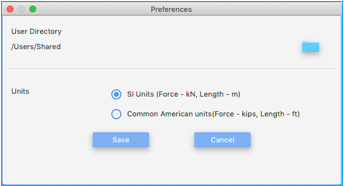
User Directory
This is the default directory where all project files will be stored. Click on the folder icon to select the directory. It will display a directory chooser dialog. The selection is displayed to the left of the folder icon
Units
The default units for the application can be set here. The choices include ‘SI Units’ and ‘Commonly American units’. These are then applied to all future projects.
Save
Save button saves the preferences for the application.
Cancel
Cancel button exits the preference dialog box without saving the changes.
Edit Menu
Cut: Cuts the current selection into the clipboard.
Copy: Copies the current selection into the clipboard.
Paste: Pastes the current selection from the clipboard.
Delete: Deletes the current selection.
Undo: Undo’s the last config change.
Redo: Reapplies the last undone change.
Compute Menu
Validate
Validate checks all the inputs for errors. If there are no errors, a notification indicating the same is displayed.
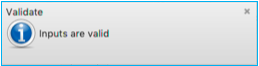
If there are errors, you will get notifications detailing each error.

Troubleshooting errors
Fill all the required parameters in the
‘Input Parameters’ pane and complete all the required tables. The mandatory
fields have a red star ( ) adjacent to the field.
1. Analysis Model (at least one model should be selected)
1. Beam Length
2. Breadth table
3. Depth table
4. Beam Material Properties
5. Soil properties tab
a. Elastic Modulus of soil – if ‘Elastic Half-space analysis model’ is selected
b. Poisson ratio of soil – if ‘Elastic Half-space analysis model’ is selected
c. Subgrade Modulus Table – if ‘Discrete Spring Bed Analysis model’ is selected
6. Data in the load case tabs. If no data is specified, it will assume that no load is applied on the beam.
Tables with errors will highlighted with a red border with a label indicating ‘error’. Hovering the mouse over the ‘error’ label indicates the nature of error.
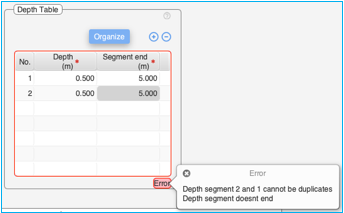
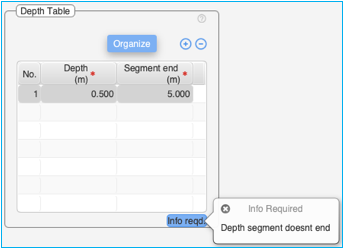
Incomplete tables will have a label at the bottom right-hand corner indicating ‘info reqd.’. Hovering the mouse over the ‘info reqd.’ label indicates the nature of the information required.
Clear Outputs
Clears all the output tables and graphs. This will clear all the tables and graphs in the ‘Discrete spring bed analysis’ pane and ‘Elastic Half-space Analysis’ pane.
Compute
Selecting the compute performs the analysis based on the parameters provided.
The application first validates the inputs. If inputs are not valid, it displays the errors and doesn’t proceed further. Refer to ‘validate Inputs’ for more details on trouble shooting errors.
If Inputs are valid, it proceeds to perform the analysis.
A successful analysis will pop up a notification for each analysis model selected for analysis.


The respective analysis panes will also be highlighted in green color to indicate that fresh results are available. Click on the panes to view the analysis.

If there are errors while performing the execution, or the execution takes more than 5 seconds to perform, the execution will error out with appropriate errors.
Help Menu
Registration
The registration window will pop up at the time of the installation of the application on a PC or Mac. The user MUST enter the ‘Registration ID’, click on the [Submit] button and register the application. The ‘Registration ID’ is emailed to the user at the time of the application download. The application will fetch the registration details from our servers an populate the Name and Organization fields. Some functions in the application will not work if the application is not registered.
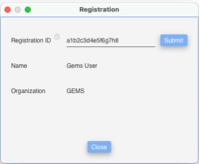
The user can set / update the ‘Registration ID’ by entering it later and clicking on the [Submit] button.
For cloud users, the registration information is fetched from the servers and populated when the application is launched. The Registration window displays the Registration ID fetched from the servers.
License
License menu-item opens a license dialog indicating the status of the license.
There are four types of Licensing schemes supported:
2. Virtual Machine (VM) License
Standalone License
A standalone license is a single-user license tied to the PC or Mac on which the application is installed, running in a non-virtual-machine environment.
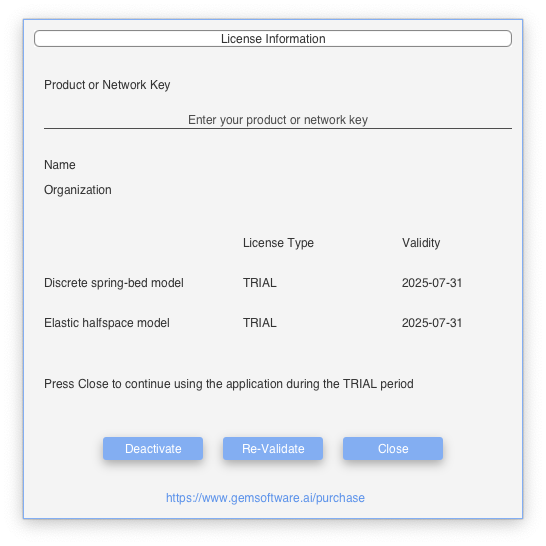
Standalone License information during Trial period
Product or Network Key
This is only applicable for desktop applications running on Windows / macOS and is not applicable for applications hosted on GEMSai cloud. All the GEMSai applications share the same Product or Network key. This field is editable if there is no product or network key associated with this application.
Note: During the trial period, a product or network key is not required, and the application can be used by closing the license window.
Product Key
Once a ‘Product Key’ is applied and activated using the [Activate] Button, the ‘Product Key’ is tied to the machine. Uninstalling the application will not remove the association of the ‘Product Key’ with this machine. The ‘Product Key’ can only be disassociated after deactivating the product key by clicking the [Deactivate] button.
Network Key
If you have a Network Key for your organization, enter the ‘Network Key’ in the ‘Product or Network Key’ field and click on [Activate] button. The ‘Network key’ is now saved in the system and will take effect once the application is closed and restarted. More details can be found in the Network Based License section.
Name
Name of the licensee to whom the product key is issued. This field is populated by the application by downloading this information from GEMSai servers on the internet. This information is provided by the user at the time of purchase of the license or at the time of registration.
Organization
Name of the organization to which the licensee belongs. This field is populated by the application by downloading this information from the internet servers. This information is provided by the user at the time of purchase of the license or at the time of registration.
License Type
There are two analysis modules which are bundled together into a common license for the GEMSai Beam Foundation software.
1. Discrete Spring Bed Analysis
2. Elastic Half-space Analysis
Type of license for the analysis module. The values can be
TRIAL – This module can be used under trial license. The functionality of this module may be limited during the trial period. Trial period is typically 30 days from the date the first GEMSai application is installed on the machine. Internet connectivity is required to use the application if all the modules are under trial. The application validates the trial license with our servers on the internet each time it is launched.
EXTENDED_TRIAL – This module can be used under trial license. The functionality of this module may be limited during the extended trial period. The license is valid for the extended trial period shown. Internet connectivity is required to use the application if all the modules are under extended trial. The application validates the trial license with our servers on the internet each time it is launched.
SUBSCRIPTION – This module has a subscription license and there are no restrictions in functionality. The license period is for the period shown and requires renewal prior to the expiry date. One is advised to renew the license before the expiry date to avoid any discontinuity. Please contact support@gemsoftware.ai or visit www.gemsoftware.ai/purchase to renew the subscription. The application validates the license periodically with our servers for validity.
FULL – This module has a full license and there are no restrictions in functionality. The license period is permanent & perpetual. The application validates the license with our servers periodically for validity.
EXPIRED – The license period has expired. Please contact support@gemsoftware.ai or visit www.gemsoftware.ai/purchase to purchase license for this module. Click on the [Revalidate] button if you feel that the license may still be valid. The application cannot be used if all licenses are in INVALID / EXPIRED / UNKNOWN state.
INVALID/UNKNOWN – The state of the license cannot be determined. This may happen if the application cannot validate license information against our servers on the internet. Click on the [Revalidate] button to contact our servers on the internet to get updated information. When the application is first installed, the initial state may be “INVALID / UNKNOWN / TRIAL”.
The application cannot be used if all licenses are in INVALID / EXPIRED / UNKNOWN state.
Validity
This field shows the validity period of each license.
License related messages are displayed in the messages area.
Activate Button
Enter the product or network key and click [Activate]. The application displays a notification once the key is activated.
Deactivate Button
Deactivate button de-activates the product key associated with this machine. The [Deactivate] button is only visible when a valid product key has been activated on the machine. Upon deactivation, the ‘Product Key’ can now be used on another machine.
IMPORTANT: When uninstalling the software from the machine, remember to deactivate the software first.
Revalidate Button
Click [Revalidate] to fetch updated product key and license information from our servers — for example, after purchasing additional licenses or updating license features.
Close Button
Closes the license dialog. If all the licenses are EXPIRED / INVALID / UNKNOWN, then the application will also close. The application can only be used if the correct product / network key is entered and at least one license is of TRIAL / EXTENDED_TRIAL / SUBSCRIPTION / FULL type.
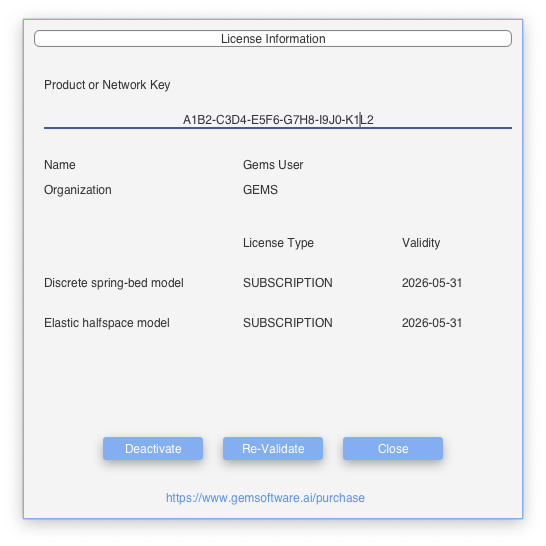
License information after SUBSCRIPTION license is activated
for standalone user.
Virtual Machine (VM) License
This is a single-user, network-based license used on systems running in virtual machine environments. When the application is launched the first time, it detects if it is running within a virtual machine. If so, the application will prompt the user to close and restart it. Upon restart, the application will download and install a product key (usually prefixed with VM-) from the server based on the Registration ID provided. The initial licenses installed are TRIAL licenses for each module.
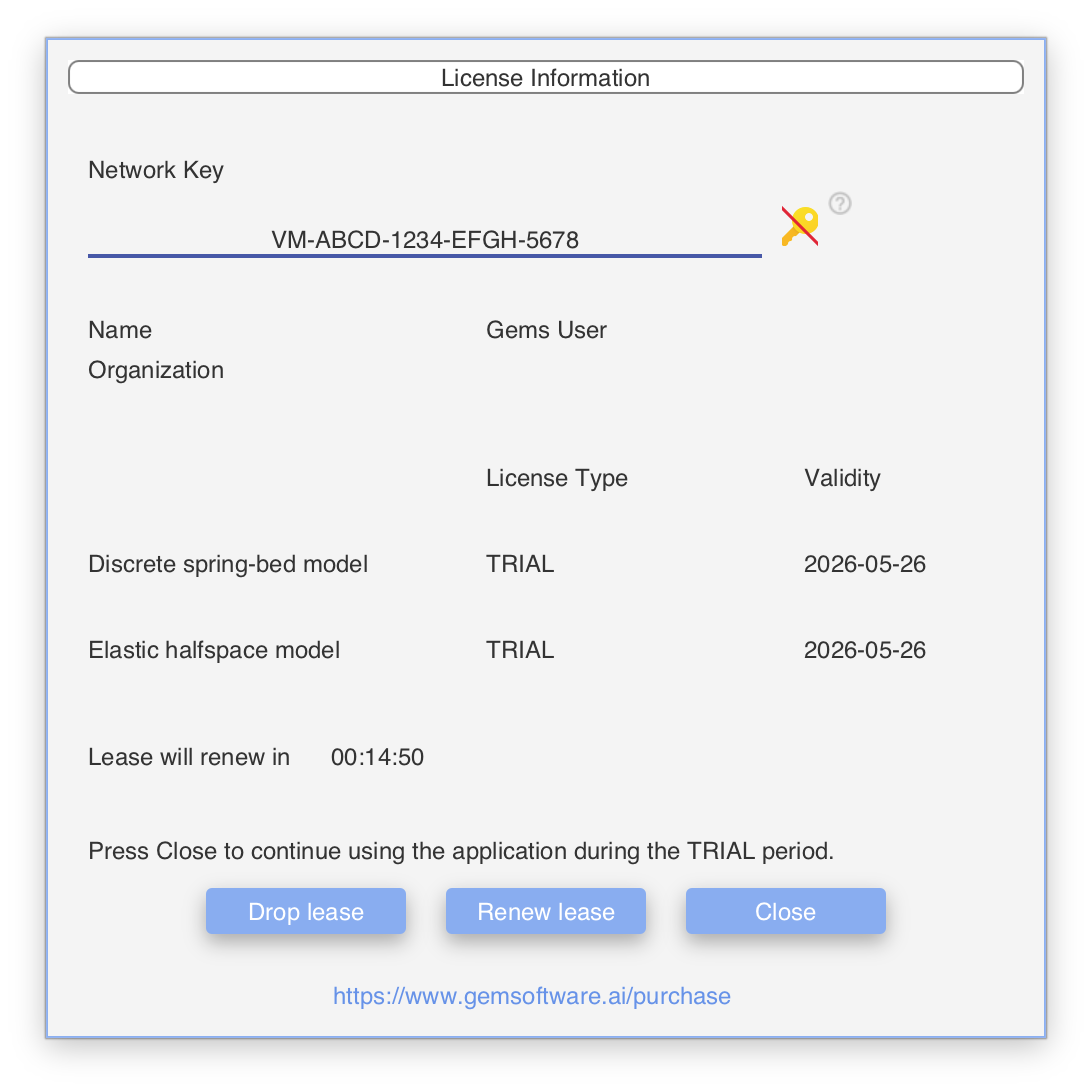
VM License information during Trial period
The user is assigned a lease that renews periodically (typically every 15 minutes). When the user closes the application, the lease is automatically dropped. The behavior of the [Renew Lease] and [Drop Lease] buttons is described below.
The user can upgrade to a paid subscription at any time, and the licenses will update automatically to reflect the change.
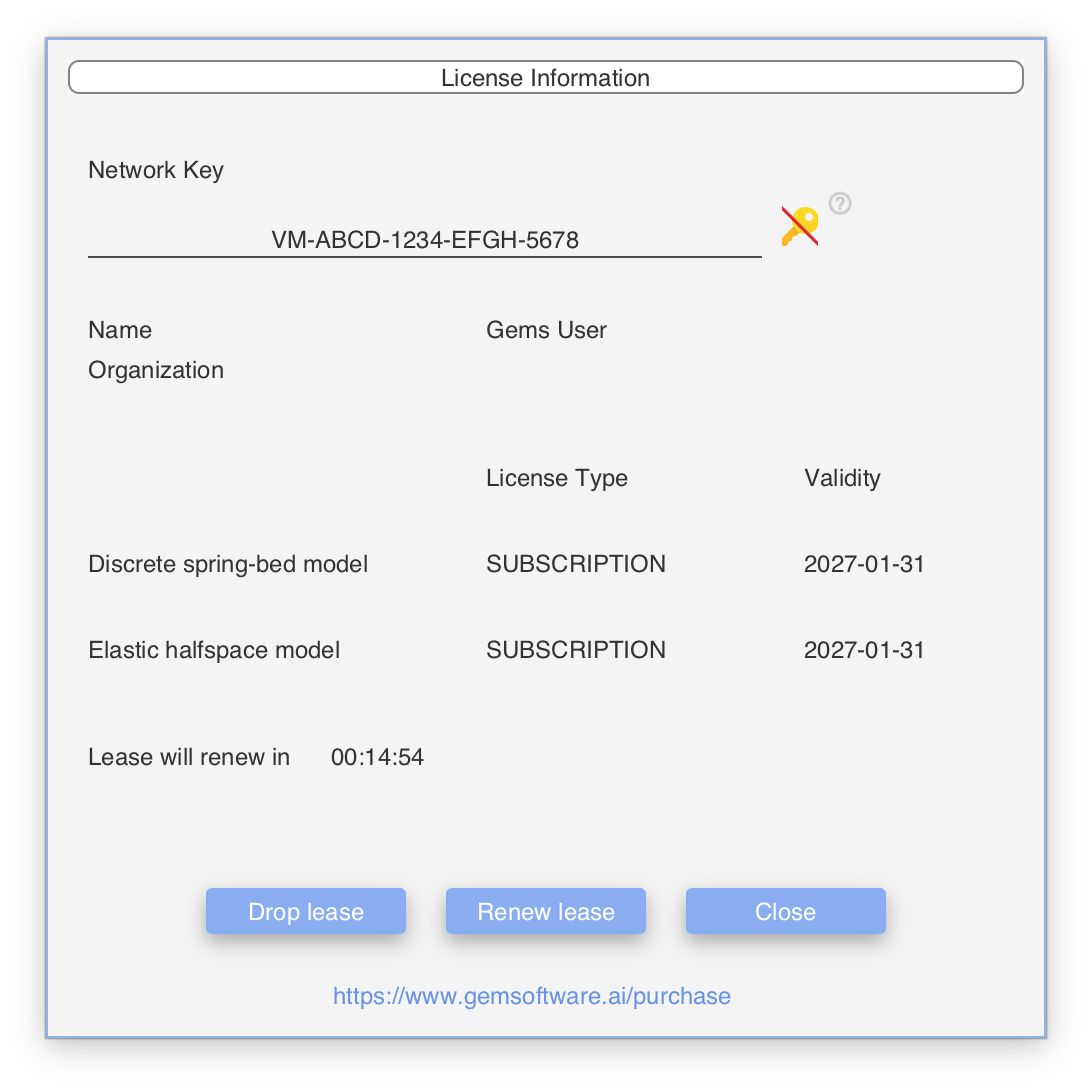
License information after SUBSCRIPTION license is activated
for VM user.
Note: The system needs to be connected to the internet for the application to work in a VM environment.
Network Key
This is only applicable for desktop applications running on Windows within a virtual machine environment. This is not applicable for MacOS, or applications hosted on GEMSai cloud. The ‘Network Key’ cannot be edited.
Note: If the ‘Network Key’ shows ‘VM-TBD’, it indicates that the application has not been able to fetch the VM Key from the server. This can be due to
a) The Registration id has not been set correctly
b) The application doesn’t have proper internet connectivity
Note: To change the ‘Network Key’, the user must first delete it, close and restart the application, and then enter the new key in the licensing window.
License Type
More information on license types can be found here.
Delete Network Key 
CAUTION: Clicking this icon will remove the VM key from the system. Save the configuration files if required before deleting the VM key. The application will close after this. Upon restart, the application will prompt the user to enter a valid product / network key or to restart the application to fetch the VM Key.
IMPORTANT: When uninstalling the software from the machine, it is a good practice to delete the network key from the system.
Renew Lease Button
This will renew the lease from the server and reset the lease timer. The application will automatically renew the lease from server a few minutes before the lease expires. If the application is unable to renew the lease, the license window will reopen, and the user will need to renew the lease manually by clicking the [Renew Lease] button.
Drop Lease Button
This will drop the current lease of the application from the servers. The ‘License Type’ of each module will now show as ‘UNKNOWN’ without any Validity. The application will automatically drop the lease once the application is closed, and the user doesn’t need to manually drop the lease before closing the application.
Multi-user Network License
This is a multi-user license issued to an organization. This enables the software to be simultaneously used by multiple users in the organization. The number of simultaneous users depends on the number of seats allocated for the license. Users are assigned leases which renew periodically (typically 15 minutes). When the user closes the application, the lease is automatically dropped and can be assigned to other users.
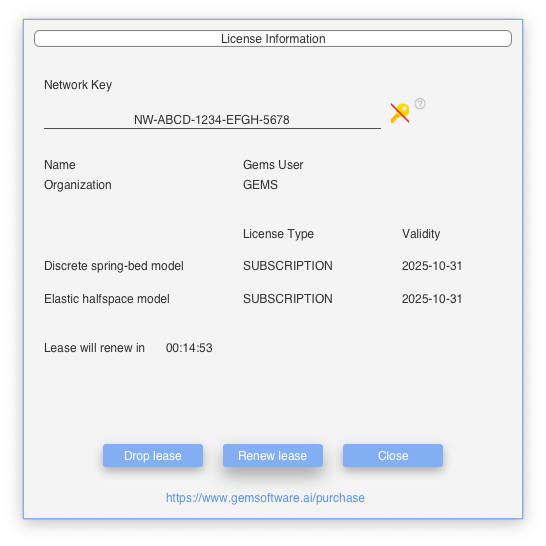
License information after SUBSCRIPTION license is activated
for network user.
Network Key
This is only applicable for desktop applications running on Windows / macOS for organizations which have purchased a network license and is not applicable for applications hosted on GEMSai cloud. The ‘Network Key’ cannot be edited.
Note: If the user wishes to change the ‘Network Key’ he/she must first delete the network key, close and restart the application, and then enter it again in the licensing window.
License Type
More information on license types can be found here.
Delete Network Key
Clicking this icon will remove the network key from the system. Save the configuration files if required before deleting the network key. The application will close after this. Upon restart, the application will start as a standalone licensed application.
IMPORTANT: When uninstalling the software from the machine, it is a good practice to delete the network key from the system.
Renew Lease Button
This will renew the lease from the server and reset the lease timer. The application will automatically renew the lease from server a few minutes before the lease expires. If the application is unable to renew the lease, the license window will reopen, and the user will need to renew the lease manually by clicking the [Renew Lease] button.
Drop Lease Button
This will drop the current lease of the application from the servers. The ‘License Type’ of each module will now show as ‘UNKNOWN’ without any Validity. The lease is now available for other users in the organization to use. The application will automatically drop the lease once the application is closed, and the user doesn’t need to manually drop the lease before closing the application.
Cloud License
This is a license assigned to a user when they access the product on our cloud.
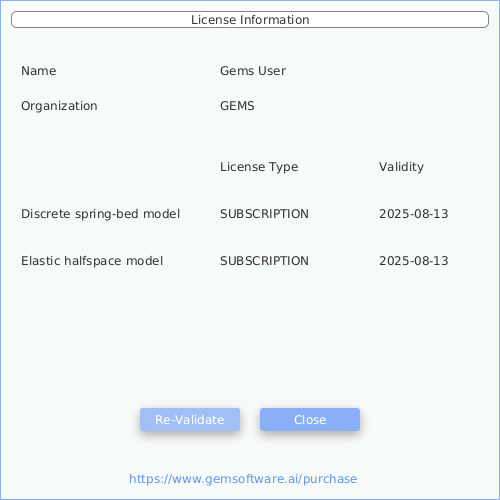
License information after SUBSCRIPTION license is activated
for cloud user.
The application fetches the required license information for the user from the server upon startup.
License Type
More information on license types can be found here.
Re-validate Button
Clicking the [Revalidate] button fetches the license in
About
About menu displays information regarding the application, copyright information and has links to “License” for this software.
Help
Displays help related information for the application